Quick answer: Laptop screen flickering can be caused by software, graphics-driver problems, a failing screen, a damaged display cable or a motherboard issue. A single symptom rarely identifies the failed part. A sensible diagnosis compares the built-in display with an external screen, checks when the flicker occurs, and uses manufacturer-approved tests before replacing components.
This guide is written for owners of Windows laptops, gaming laptops and MacBooks in Richmond Hill and surrounding York Region communities. It focuses on safe observations you can make before a repair appointment. A laptop with liquid damage, cracked casing or electrical smell requires a different, more cautious response.
Laptop Screen Flickering: What Does the Symptom Look Like?
Describe the problem before attempting fixes. Does brightness pulse gently? Do horizontal lines move across the display? Does the entire image go black for a second? Is only a small section distorted, or does the screen work until you move the lid? These details help separate a refresh-rate or graphics problem from a loose internal connection.
Take a short video using your phone if the problem is intermittent. Note whether it happens on battery, with the charger connected, in a particular application, or immediately after switching the laptop on. If the unit is in warranty, document the symptom and check service terms before opening it.

Test an external monitor
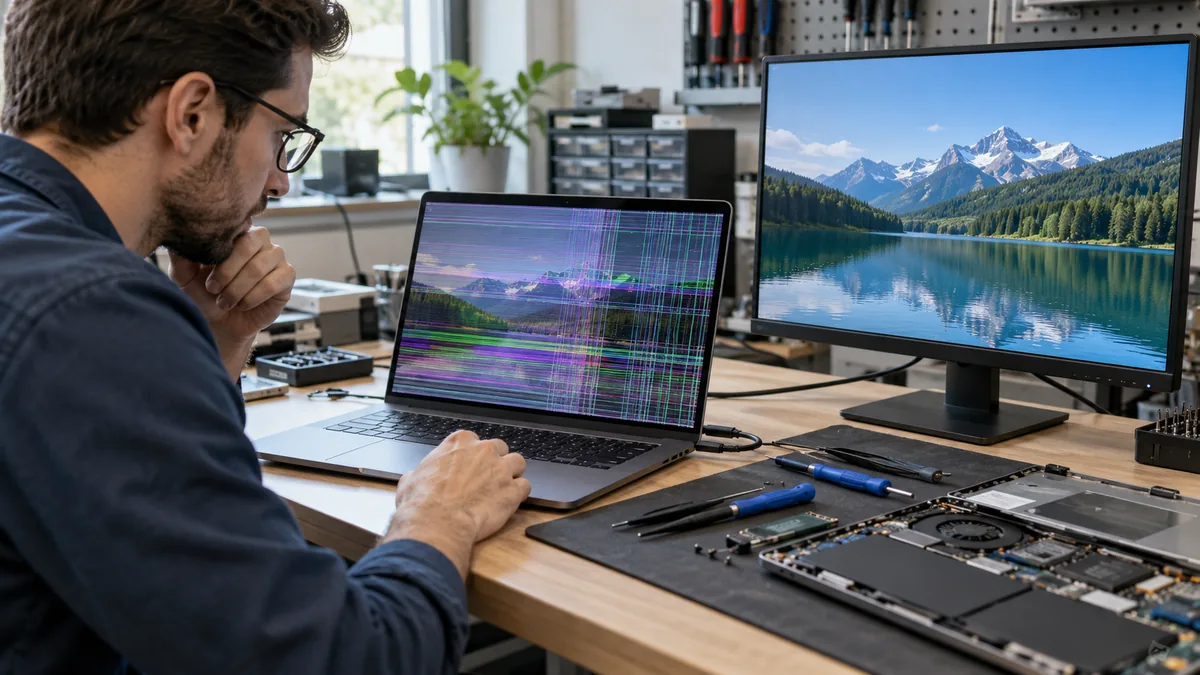
Connect a known-good monitor or television using a compatible HDMI, USB-C or DisplayPort connection. Confirm that the external screen is displaying the same image rather than a separate desktop. If the laptop panel flickers while the external monitor remains stable, the internal screen assembly, hinge-area cable or its connection becomes more suspicious. That is not conclusive: laptop panels can respond differently to refresh rate or graphics settings.
If both screens flicker in the same way, consider a graphics driver, graphics subsystem or system-wide software issue. The cable and external display must also be ruled out. A blank external output on its own does not prove a failed GPU because the laptop could be using the wrong display mode.
Does the flicker appear before Windows starts?
Watch the manufacturer’s splash screen and firmware menus if you can enter them safely. Flicker visible before Windows loads makes an ordinary Windows app less likely as the sole cause. In contrast, flicker that starts only after signing into Windows could indicate a driver, refresh-rate, display-control or application conflict. Neither observation is a complete diagnosis.
Use Windows Task Manager as a clue
Microsoft recommends opening Task Manager while the screen flickers. If Task Manager flickers along with everything else, a graphics-driver problem is more plausible. If Task Manager remains stable while other portions of the screen flicker, an incompatible application is more plausible. Microsoft also recommends considering recent driver updates and using supported rollback or update methods as appropriate.
Avoid downloading generic driver-repair utilities from unknown sites. Prefer Windows Update or the laptop manufacturer’s driver page. Before changing drivers, save open work, create a restore point if available, and record the currently installed graphics-driver version. Do not flash BIOS merely because the screen flickers.
Refresh rate, brightness and power settings
Some flicker relates to a setting rather than a defective part. If you can see the screen clearly, check the display refresh rate and any adaptive refresh or variable-refresh options supported by the computer. Gaming laptops may have hybrid graphics modes, panel overdrive or vendor utilities that affect behaviour. A controlled test of one setting at a time is more informative than changing several things together.
If the display flickers only on battery power, note the brightness and power-mode difference. Power-management settings can change the panel refresh rate or the active graphics processor. That clue can narrow the investigation but cannot confirm the battery itself is faulty.
Why hinge movement matters
The internal display cable often travels through or near the hinge assembly. Repeated opening, accidental impact or a cracked hinge mount can strain it. If the image changes when the lid is gently moved through its normal operating range, that raises suspicion about the cable, connector or display assembly. Do not keep flexing a damaged hinge or forcing the screen past resistance; continued use may damage the cable or panel.
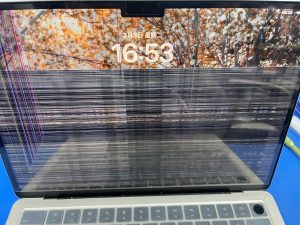
Lines, discolouration or a black band that changes with lid angle can also come from the panel itself. A technician may need to inspect internal connectors and test a compatible replacement screen. Replacing a panel before confirming the cable can result in an expensive, ineffective repair.
Built-in laptop screen diagnostics
Some manufacturers offer display self-tests that run independently of the operating system. For example, Dell documents an LCD built-in self-test on supported laptops, commonly using the D key with the power button. This is a model-dependent procedure, not a universal keyboard shortcut. Look up the exact manufacturer’s instructions for your serial number and model.
During a supported panel test, look for stripes, missing colours, fading or other defects. Even a passing test does not completely exclude intermittent cable or temperature-related faults. It is one piece of evidence to combine with the external monitor and system-startup observations.
What if the screen is physically damaged?
Visible cracks, dark blotches, bleeding liquid-crystal patterns or clusters of lines following impact usually call for hardware assessment. Covering the damaged display or applying pressure will not restore the panel. If the battery appears swollen or the display frame is separating, stop using and charging the laptop and seek professional guidance. Do not push the screen back into place.
When a graphics or motherboard fault is more likely
Symptoms affecting external and internal displays, random shutdowns, artefacts during hardware diagnostics or failure to display anything before the operating system may warrant graphics or board-level evaluation. However, heat, memory problems, software faults and cables can sometimes imitate GPU failure. A board replacement should not be the first assumption.
Repair or replacement: what should you ask?
Ask the repair shop which tests isolated the failure, whether the cable or panel can be serviced independently, whether the replacement part matches the panel resolution and refresh rate, and whether there is a written estimate. On some thin laptops the display assembly is integrated and repair pricing differs from a conventional replaceable LCD.
If you are concerned about personal data, back up accessible files before handing the laptop over and ask what access the technician needs. If the computer is experiencing power or liquid-related problems, do not force it to run just to complete a backup.
Laptop flickering troubleshooting checklist
- Record when the flicker begins and whether the device has suffered impact or liquid damage.
- Check whether the problem appears before Windows starts.
- Try a suitable known-good external monitor.
- On Windows, compare Task Manager’s behaviour with other applications.
- Check supported refresh-rate and power-mode settings one at a time.
- Use a manufacturer-documented LCD test where available.
- Stop flexing a damaged hinge or opening the laptop when hardware damage is suspected.
Laptop screen repair in Richmond Hill
For panel, cable or graphics symptoms, review our Laptop Repair service page. We also provide Dell laptop repair information and ASUS laptop repair information. Contact our Richmond Hill shop with your model number and a short description of the flicker. You can also call 416-587-7105 or visit our active shop at 360 Newkirk Rd, Unit 2, Richmond Hill, ON L4C 3G7.
Frequently asked questions
Can a driver update fix a flickering laptop screen?
Sometimes. Microsoft’s Windows troubleshooting identifies graphics drivers and incompatible apps as common causes. Hardware-related flicker will not be fixed by an ordinary software update.
Why does my screen flicker when I move the lid?
Movement-related symptoms can suggest hinge-area cable strain or a display assembly problem, but a controlled hardware inspection is needed to identify the part.
Does a stable external monitor mean my GPU is fine?
It makes some graphics faults less likely but does not fully exclude them. Different display paths, drivers and settings may behave differently.
Should I replace the screen before testing the cable?
Usually not without evidence. Testing the screen, signal path and display cable first may avoid unnecessary replacement.