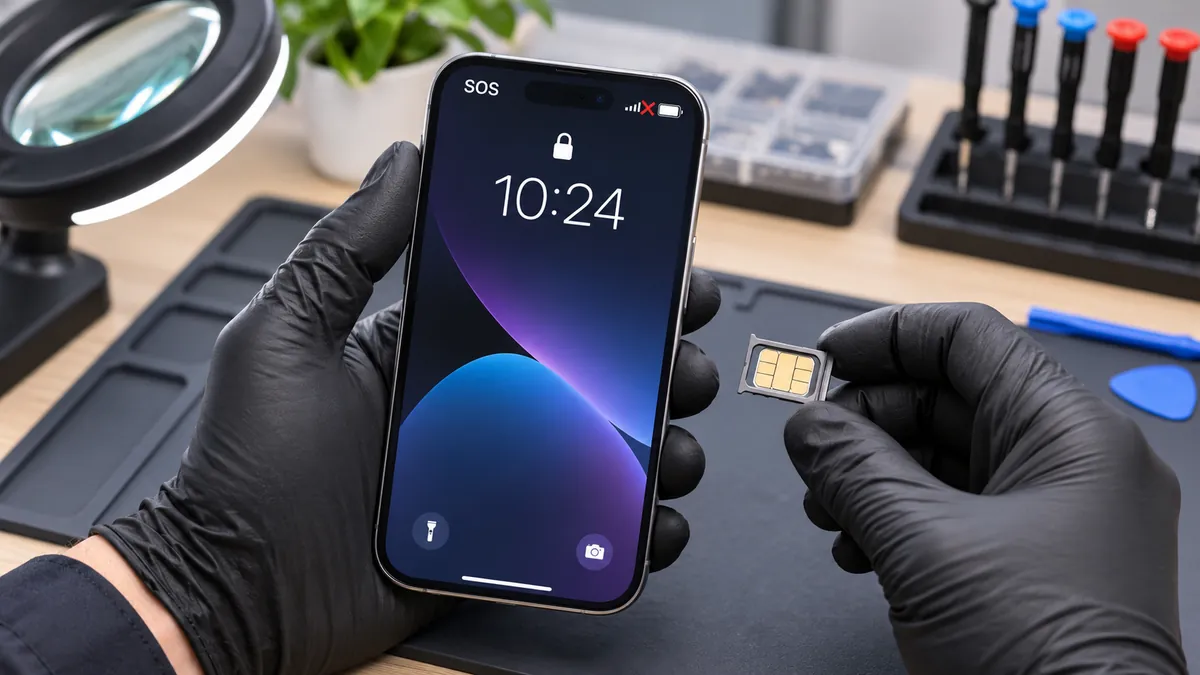
iPhone SOS Only or No Service? Start with carrier and network checks before assuming hardware damage. It is frustrating, particularly when Wi‑Fi works but calls and mobile data do not. The warning is not proof that your phone needs a new antenna or logic board. It means the phone is not connected to its usual mobile network. Depending on your model, location and available networks, “SOS Only” may still permit emergency calls; it does not mean ordinary calling is working.
The difference matters in Richmond Hill and across the GTA: a carrier outage, account issue, inactive eSIM and damaged hardware can look similar from the status bar. Before paying for a repair, work through a few low-risk checks and note exactly when the problem began.
Quick navigation: Read the status · Safe checks · When hardware is possible · Repair assessment.
iPhone SOS Only: what does it mean in Canada?
Apple explains that “SOS” or “SOS Only” indicates that your device cannot connect to your own mobile provider’s network, although emergency calling through another available network may still work in supported countries, including Canada. “No Service” or “Searching” also describes a lack of normal mobile-network connection. These messages do not identify the underlying cause.
Wi‑Fi and cellular are separate connections. An iPhone may browse websites on Wi‑Fi while the cellular line is disabled, incorrectly provisioned, temporarily unavailable or unable to reach a network. Do not assume that working Wi‑Fi proves the cellular antenna or other radio hardware is healthy.
If there is a genuine emergency, use available emergency services rather than relying on troubleshooting advice. Emergency-call capability depends on conditions and compatible networks and should not be used as a diagnostic test.
Six safe checks before booking iPhone repair
1. Check whether other devices on the same carrier are affected
If friends or family using the same mobile provider suddenly lose service in the same area, check the carrier’s official outage information. A repair shop cannot fix a network outage or an inactive account. Contact your provider if the line has been suspended, changed, or newly activated.
2. Toggle Airplane Mode, then restart
Apple recommends turning Airplane Mode on for at least 15 seconds, then off, to prompt a fresh connection attempt. If the message remains and the phone is operating normally, restart it using the steps for your model. Avoid repeatedly resetting settings while you are unsure whether your cellular plan is active.
3. Confirm the cellular line is switched on
Open Settings → Cellular (in some regions the label may be Mobile Data). On a dual-line phone, check the correct line. A plan can be present but turned off, or a recently transferred eSIM may need attention from the carrier. Do not delete an eSIM as a guess; restoring service may require carrier assistance or reactivation.
4. Look for a carrier-settings update
On Wi‑Fi, go to Settings → General → About. Apple notes that a carrier-settings update may appear there if one is available. If the phone requests a system update, consider a current backup and follow Apple’s instructions for your device. A software update is useful maintenance but not proof that hardware is intact.
5. Ask the carrier to verify the plan and network status
Carrier support can check network coverage, outages, plan activation and account restrictions that a local repair counter cannot access. This is especially relevant after moving a number, switching from physical SIM to eSIM, changing providers, travelling, or activating a new device. If a SIM card is damaged or incompatible, the carrier can advise on replacement.
6. Record whether the issue is location-specific or follows an impact
Does service return when you move to a different location? Is only one SIM/eSIM line affected? Did the problem start immediately after a drop, liquid contact or earlier repair? These observations help a technician distinguish an external network problem from a potentially damaged connection or internal component.
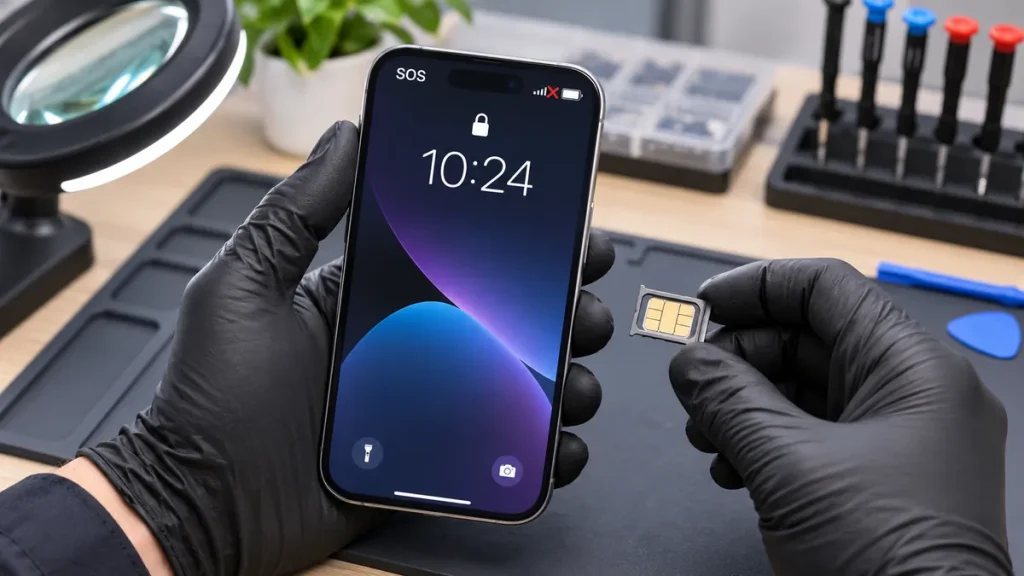
Symptoms worth documenting
| Observation | What it helps separate | Next action |
|---|---|---|
| SOS Only appears in one area but service returns elsewhere | Coverage or local network issue is plausible | Check carrier coverage and outages first |
| No Service begins immediately after a SIM/eSIM transfer | Activation or account provisioning may be involved | Contact the provider before requesting device repair |
| One dual-SIM line works and the other does not | Line-level configuration or carrier-side issue | Verify the affected plan and settings |
| Cellular stays unavailable after a documented drop or liquid exposure | Physical damage is possible, but not established | Arrange a diagnostic assessment once carrier checks are complete |
| Wi‑Fi works while calls and mobile data fail | Normal Wi‑Fi does not diagnose cellular hardware | Check carrier service, cellular settings and physical history |
When could “No Service” indicate an iPhone hardware problem?
Hardware becomes a more credible possibility when a verified active cellular plan and functioning carrier network have been ruled out, and the issue persists across reasonable checks. A recent hard impact, liquid damage or a history of intermittent signal can add context, but none is a stand-alone diagnosis.
Depending on the model, a technician may investigate connections, damage history or components involved in cellular communication. The repair could range from a minor issue to board-level work—or no repair at all if the carrier is responsible. Avoid websites promising that every SOS-only message is fixed by replacing an antenna or heating a motherboard.
Do not open the phone, pry the screen or attempt a board-level procedure based on a social-media video. You could create additional damage and make data retrieval more difficult. If the phone is physically damaged, abnormally hot or wet, follow manufacturer safety advice instead of continuing to charge and test it.
How to prepare for a useful repair assessment
Make a note of your iPhone model, iOS version, mobile provider, the exact status-bar wording, whether calls/data are unavailable, and whether the issue is constant or limited to certain places. If you have two active lines, identify which one is affected. Tell the shop what your carrier has already ruled out, and mention any recent drop, liquid exposure or previous repair.
If your iPhone still functions and has no safety concerns, make a current backup before service. Do not erase the device just to test the signal. A repair estimate should explain what was checked, whether a hardware cause was actually found and what data-handling implications, if any, you should expect.
iPhone SOS Only or No Service: diagnosis in Richmond Hill
Maple Cell Phone & Laptop Repair accepts iPhone repair enquiries at 360 Newkirk Rd, Unit 2, Richmond Hill, Ontario. You can describe the symptoms on the iPhone repair service page or contact the shop; for direct enquiries, call 416-587-7105. Whether the issue is repairable on your model requires inspection. Carrier-side faults should be resolved with your carrier instead.
If you are comparing symptoms with broader board issues, read our separate guide to iPhone motherboard damage. That article covers hardware repair context; this guide is specifically about the decision to investigate your carrier, line and signal first.
iPhone SOS Only troubleshooting: evidence to collect before a repair visit
For an iPhone SOS Only warning, the most useful diagnostic evidence is whether the problem follows the location, cellular line or physical device. Keep the original SIM or eSIM configuration intact while you contact your carrier. Do not erase the phone or delete an eSIM just to test a theory: restoring a plan may require carrier verification.
| Pattern | Possible explanation | Who to contact first |
|---|---|---|
| Several phones on the same provider lose service in one area | Local coverage or outage | Mobile carrier |
| Issue begins after changing plans or transferring eSIM | Activation or provisioning problem | Mobile carrier |
| Service works outdoors but fails in one building | Building materials or local reception conditions | Carrier coverage support |
| Problem begins after a drop and persists in different locations | Hardware damage becomes more plausible, but is unconfirmed | Carrier first, then qualified repair diagnosis |
What a useful cellular diagnosis should establish
A repair assessment should start with the exact iPhone model, whether the device recognizes the cellular line, the history of impact or liquid exposure, and the result of carrier checks. It should not assume an antenna or logic-board replacement solely because the status bar reads SOS Only. Ask which evidence points to hardware and which network or account explanations have already been excluded.
Emergency calling availability varies by network and conditions. Never place a test emergency call to diagnose the phone. If you need urgent assistance, follow local emergency guidance rather than continuing routine troubleshooting.
A practical iPhone SOS Only decision path: carrier, SIM or device?
When iPhone SOS Only appears, it helps to sort evidence by what changed before the signal disappeared. That is more useful than repeatedly toggling settings or assuming the antenna is broken. The following scenarios guide the next safe action; none of them establishes a definitive hardware diagnosis.
If the problem began during an eSIM transfer
First check whether the intended line is displayed and enabled in Settings > Cellular. If activation is incomplete, contact the provider using Wi-Fi or another working phone. Keep any eSIM activation information supplied by your carrier, and do not delete the existing plan merely to see whether the message disappears. A carrier may need to re-provision a line after a phone change, and some reactivation methods require access to the original device.
If the same carrier fails on other phones nearby
Compare phones using that carrier at the same place and time, ideally without relying on one indoor location. A local outage, coverage limitation or network maintenance is more plausible when several devices lose service simultaneously. Record the postcode or general neighbourhood and the time, then consult the carrier’s official status and support channels. A shop cannot resolve a carrier outage by replacing an iPhone part.
If service fails only on one iPhone
Note whether the phone reports a SIM-related message, recently sustained an impact, or lost service after an update. Check for a carrier settings prompt in Settings > General > About while connected to Wi-Fi. A working Wi-Fi connection does not validate the cellular hardware. Do not use emergency calls to test coverage; emergency access depends on available networks and conditions.
If the phone works in one area but not another
Location-specific failure can reflect coverage, building materials or temporary network congestion. Ask the provider about coverage and roaming rules before agreeing to a cellular hardware repair. If the problem follows the same device across locations and multiple supported carriers, include those observations when requesting a diagnosis; hardware remains a possibility, not an automatic conclusion.
For a professional assessment, bring the model, carrier name, approximate start date, last known working location and any error wording. Explain what was tested without performing a factory reset or erasing a cellular plan. This evidence can prevent unnecessary work and shorten the time spent repeating basic checks at the counter.
Frequently asked questions
Can an iPhone show SOS Only when Wi‑Fi works normally?
Yes. A working Wi‑Fi connection does not mean your iPhone has normal service from its mobile network. Check your cellular plan, coverage and account.
Is SOS Only the same as having emergency service guaranteed?
No. Apple describes emergency-calling possibilities on supported networks and models, but availability depends on conditions. Do not use emergency calling to test the device.
Should I delete and reinstall my eSIM?
Not as an initial guess. First confirm whether the carrier has activated the correct line and whether an account or network problem exists. Your carrier can direct any required eSIM setup.
Can a damaged antenna cause No Service?
Physical radio-path damage is one possibility, especially after an impact, but the status message alone cannot prove it. An assessment is meaningful only after reasonable carrier and software checks.
Will a factory reset fix SOS Only?
Not reliably, and it risks deleting information if you do not have a complete backup. Do not use a destructive reset as a first-line diagnostic step.