
Quick answer: The MacBook battery Service Recommended warning can indicate declining battery health, while charging faults can have other causes. A MacBook that runs for much less time than it used to may have a worn battery. A MacBook that will not accept power, charges only at certain angles, or suddenly stops recognizing an adapter may have a different problem. The useful first step is to check battery health and charging behaviour separately, rather than assuming every power issue requires a battery replacement.
This guide is for MacBook Air and MacBook Pro owners in Richmond Hill and nearby GTA communities. It explains what you can check safely at home, what those checks mean, and when a repair assessment is more useful than trial-and-error parts replacement.
First, separate battery runtime from the ability to charge
Two very different complaints can sound like “my MacBook battery is bad”:
- Short runtime: The Mac charges normally, but the charge runs down much faster than it used to, especially under the same type of workload.
- Charging failure: The percentage stays unchanged, charging works intermittently, or the machine does not recognize a compatible adapter.
They can occur together, but one does not prove the other. Power usage, display brightness, running applications and macOS battery-management features all affect how quickly the indicated charge falls. Charging problems can involve an adapter, cable, connector, USB-C or MagSafe port, battery or internal power circuitry. Replacing the battery without checking these possibilities may not solve the complaint.
MacBook Battery Service Recommended: What the Warning Means
In supported versions of macOS, open Apple menu → System Settings → Battery and inspect Battery Health. Apple describes Normal as a battery functioning normally. Service Recommended means the battery holds less charge than when new or is not operating normally. It is a reason to evaluate performance and service options, not a precise diagnosis of a particular failed component.
Apple also states that a Mac displaying this message can generally continue to be used, although service may be appropriate if the reduced capacity affects your work. See Apple’s explanation of Service Recommended. If the Battery Health item is missing, the model or macOS version may not support that display.
For Apple silicon Mac laptops, battery-health management can intentionally adjust charging to slow chemical ageing. A percentage that temporarily stops increasing is not by itself proof that a new battery is necessary. Apple explains how battery-health management works.
Check cycle count, but do not treat it as the whole diagnosis
A charge cycle represents a cumulative use of 100% of battery capacity, which need not happen in one session. To check the reported value, hold the Option key, open the Apple menu, choose System Information, select Power, and look for Cycle Count in the battery information.
Cycle-count limits are model-specific. Many newer MacBook families are rated for up to 1,000 cycles, but older models have lower limits. Apple’s model-by-model battery-cycle reference is the proper way to check yours. Apple describes its batteries as designed to retain up to 80% of original capacity at their maximum specified cycle count under normal conditions.
Do not interpret 1,000 as a universal replacement deadline. A battery may need professional evaluation earlier because of its condition or performance, while cycle count alone will not tell you why a MacBook fails to detect a charger. The combination of condition, maximum capacity where available, age, symptoms and charging test results is more useful.

Symptoms that justify a battery assessment
- Noticeably shorter unplugged use: Run time has declined consistently, not just during a one-off heavy workload.
- Repeated unexpected shutdowns on battery power: The laptop shuts off even when the indicator suggests charge remains.
- A persistent Service Recommended notice: macOS reports reduced health and the battery is affecting normal use.
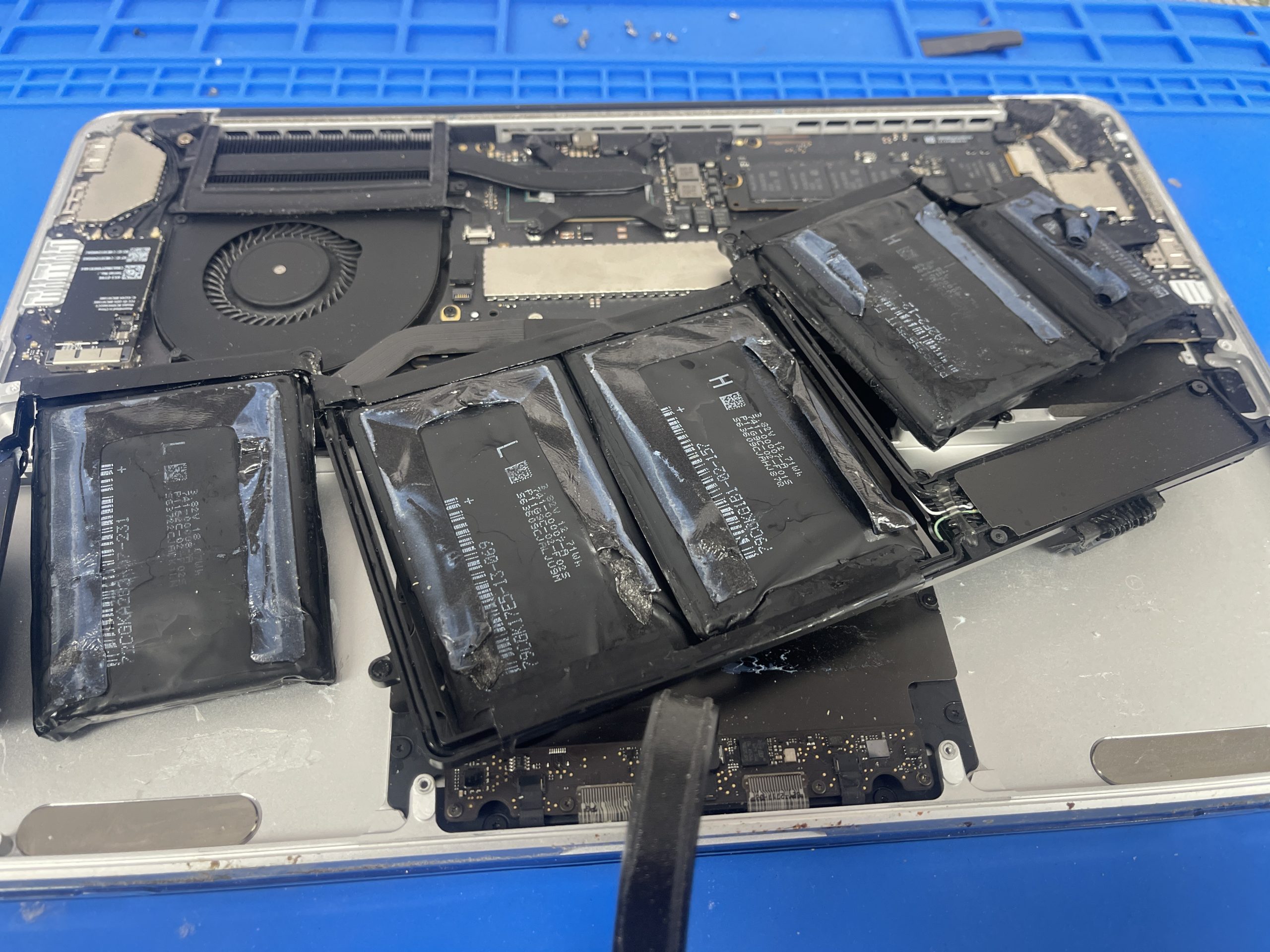
- Physical swelling or enclosure deformation: The trackpad or bottom case appears raised or unusually tight. This is a safety concern requiring prompt professional attention, not another charging experiment.
If the enclosure appears swollen, disconnect power, stop using the device and arrange an inspection. Do not puncture, compress, pry or attempt to flatten a lithium-ion battery. Back up important files only if it is safe to operate the computer.
Symptoms that point toward charging diagnosis instead
A MacBook that loses charge normally but will not replenish it may require a charging-path assessment. Check the following without opening the computer:
- Use a compatible adapter and cable. Check that the charger supplies adequate power for the exact MacBook model. A cable that works for data transfer is not necessarily a suitable high-power charging cable.
- Inspect externally for damage. Look for frayed insulation, a bent connector or visible damage. Stop using any damaged power accessory.
- Try a known-working outlet and appropriate charging port. Where the model supports it, check whether behaviour changes with another compatible USB-C connection or MagSafe setup.
- Check the macOS status message. “Not Charging” can sometimes reflect charging management or insufficient power rather than a dead battery.
- Record exactly what happens. Note whether the indicator reacts, whether charging is intermittent, whether the Mac runs on adapter power, and whether the issue appeared after liquid exposure or a drop.
Do not insert metal tools into a USB-C or MagSafe port or apply liquids to “clean” it. If a simple charger check does not resolve the problem, diagnosis should precede replacement. For a broader troubleshooting sequence, see our MacBook not charging guide.
Should you replace the battery immediately?
Replacement is more sensible when the battery itself is demonstrably worn or faulty and the rest of the charging system functions properly. If charging only works when the cable is moved, a port or cable may be involved. If the MacBook fails to power up after a liquid spill, there may be several issues that a new battery alone will not correct. If it runs well when connected to power but shuts down rapidly when unplugged, battery condition becomes more relevant, but still warrants verification.
When comparing repair options, ask for a model-specific diagnosis and a clear explanation of the suspected failed part. Battery compatibility, installation method and parts availability vary considerably across MacBook generations; a price quoted without knowing the exact model may be misleading.
What to have ready before a MacBook battery appointment
Providing a few details helps the technician narrow down likely causes before testing:
- The MacBook Air or MacBook Pro model and approximate year, if known.
- The Battery Health message and cycle count, if available.
- Whether the issue is short runtime, no charge, intermittent charging or shutdowns.
- Whether the behaviour occurs with more than one compatible power adapter.
- Any recent drop, liquid exposure, visible swelling or unusual heat.
Do not share passwords in an online form or public message. If the Mac still operates normally and can be used safely, make a current backup of important data before a service visit.
MacBook battery and charging checks in Richmond Hill
Maple Cell Phone & Laptop Repair Services welcomes MacBook repair customers at 360 Newkirk Rd, Unit 2, Richmond Hill, and serves nearby GTA communities. For a model-specific assessment, call 416-587-7105. If you are deciding whether you need a replacement battery or charging-system diagnosis, review our MacBook battery replacement service page and contact the shop with your model and symptoms. A proper assessment helps avoid replacing a part that may not be responsible for the fault.
Frequently asked questions
Does “Service Recommended” mean my MacBook is unsafe to use?
Not necessarily. Apple says the message can indicate reduced capacity or abnormal battery operation and that continued use is generally possible. Physical swelling, a damaged enclosure, smoke, strong odour or unusual heat are different warning signs: stop using and charging the device and seek professional guidance.
Is 1,000 cycles the replacement limit for every MacBook?
No. Apple’s rated maximum cycle count depends on the model, and the battery’s measured condition and behaviour matter as well. Check Apple’s model-specific table instead of relying on one number.
If my MacBook says “Not Charging,” do I need a new battery?
Not necessarily. macOS charge management, insufficient adapter power, a failing cable, a damaged port or internal power circuitry may be involved. The correct next step is to isolate the cause.
Should I buy a battery before getting a diagnosis?
If the symptoms are ambiguous, diagnosis first is usually the better approach. MacBook battery designs and replacement procedures vary by model, and a new battery will not fix every charging fault.