1. Faulty Power Adapter or Charger
Sometimes the problem is simpler than it seems — your charger may be broken or delivering the wrong voltage. Try these steps:
- Check if the charger LED light is on when plugged in.
- Try using another compatible charger (borrow or test from a friend).
- Inspect the cable for signs of wear, fraying, or bent connectors.
If a new charger works, then your original one likely needs replacement. At Maple Laptop Repair, we stock OEM and high-quality replacement chargers for all major laptop brands.
2. Loose or Damaged Charging Port (DC Jack)
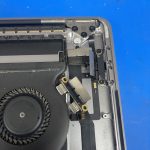
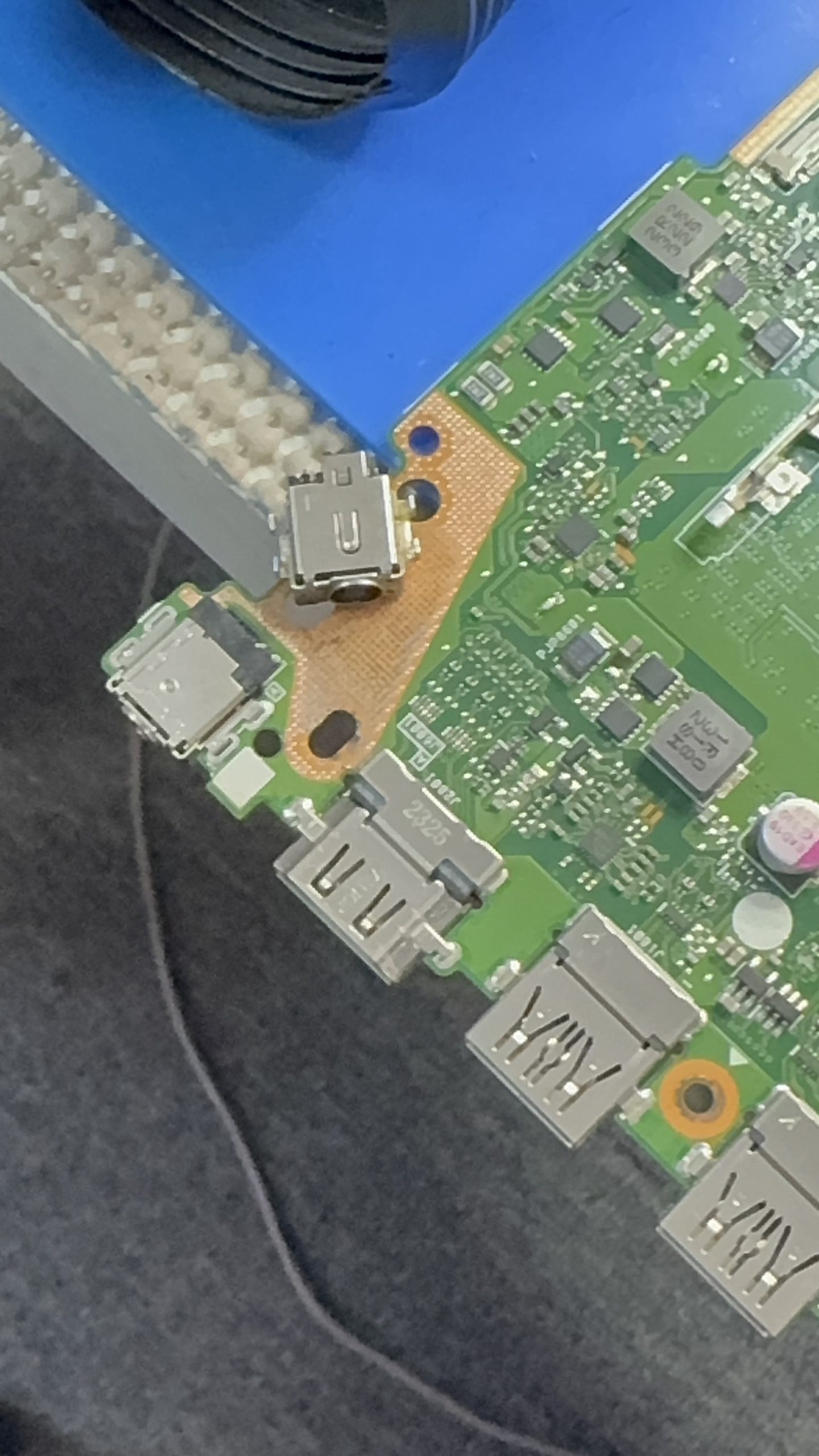
The DC charging port is a small but essential component. It’s where your charger connects to your laptop’s motherboard. Over time, constant plugging and unplugging can cause it to become loose or damaged internally.
Signs of a damaged DC jack include:
- The charger only works when held at a certain angle.
- The charging light flickers or doesn’t turn on.
- The charger plug feels loose when inserted.
If you experience these symptoms, the port may need to be resoldered or replaced. Our Richmond Hill repair shop specializes in DC jack repair and microsoldering — saving you from needing a full motherboard replacement.
3. Faulty or Old Battery
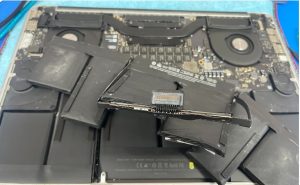
All laptop batteries have a limited lifespan, typically between 2–4 years. If your laptop works when plugged in but dies immediately when unplugged, the battery has likely failed.
How to confirm: Try removing the battery (if removable) and using the laptop on direct power. If it powers on normally, your battery needs replacement.
At Maple Laptop Repair, we provide OEM battery replacements for MacBooks, HP, Dell, Lenovo, Asus, Acer, and more.
4. Overheating or Power Circuit Issues
Laptops are designed to protect themselves by shutting down or refusing to charge when they get too hot. Dust buildup in cooling fans or poor ventilation can cause overheating.
Our technicians perform professional CPU fan cleaning and thermal paste replacement to restore proper cooling. If your charging circuit is damaged, we can perform board-level repairs to restore full functionality.
5. Software or Driver Problems
Sometimes the issue isn’t hardware-related at all. Incorrect battery drivers or system errors can interfere with charging detection.
Try this:
- Unplug your charger and shut down your laptop.
- Remove the battery (if possible).
- Hold the power button for 15 seconds to discharge residual power.
- Reinsert the battery and plug in the charger.
- Restart your laptop and update your BIOS and power management drivers.
If this doesn’t solve it, the problem might still lie deeper in the power circuit or motherboard.
6. Motherboard or Power IC Damage
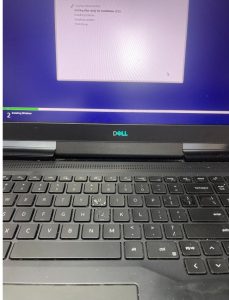
When neither the charger, battery, nor software seem to be the issue, it could be a sign of internal damage to the motherboard. Power IC chips or MOSFET components control voltage flow — if one fails, your laptop won’t charge or power on at all.
Our experts at Maple Cell Phone & Laptop Repair use advanced microsoldering techniques to repair damaged circuits, saving you hundreds compared to a motherboard replacement.
7. Water or Liquid Damage
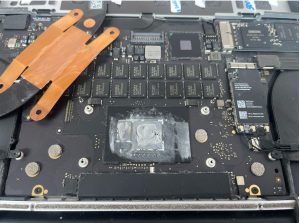
Even a small amount of liquid spilled near your laptop can cause corrosion inside the charging circuit. Common signs include:
- No charging light or response when plugged in.
- Random restarts or battery errors.
- Visible green or white residue on components (if opened).
Never try to charge a water-damaged laptop. Bring it immediately to our repair shop for professional ultrasonic cleaning and corrosion treatment.
When to Visit a Professional Laptop Repair Shop
If you’ve tried all these steps and your laptop still won’t charge, it’s time to visit the professionals. At Maple Cell Phone & Laptop Repair, we diagnose and repair charging issues, DC jack replacements, water damage, and motherboard failures on-site with precision tools and years of experience.
We offer same-day diagnostics, **warranty-backed repairs**, and transparent pricing for all services.
Why Choose Maple Cell Phone & Laptop Repair in Richmond Hill?
- Experienced technicians with advanced microsoldering skills.
- High-quality OEM parts for all repairs.
- Fast turnaround time — most jobs completed same day.
- Affordable pricing with warranty on parts and labor.
- Convenient location serving Richmond Hill, Vaughan, Maple, Thornhill, and Aurora.
Conclusion
A laptop that won’t charge doesn’t always mean it’s dead. Often, a skilled technician can repair the root cause — saving you time and money. Whether it’s a damaged charging port, faulty battery, or motherboard issue, we’re here to help.
Visit us today:
Maple Cell Phone & Laptop Repair360 Newkirk Rd, Richmond Hill, ON
📞 416-587-7105 | ✉️ info@maplelaptopservices.com
🌐 maplelaptopservices.com