Quick answer: An SSD not detected by Windows, macOS or the computer’s firmware does not necessarily mean its data is gone. The cause may be an external cable, enclosure, storage-driver setting, disabled port, file-system issue or hardware fault. If the SSD holds files you cannot replace, avoid formatting, initializing, reinstalling the operating system or repeatedly running repairs before you understand what is failing.
This guide explains safe observations for owners of desktops, Windows laptops and MacBooks in Richmond Hill and nearby GTA communities. It separates a brand-new empty SSD from a previously working drive containing irreplaceable data. Those two scenarios should not be treated the same.
SSD Not Detected: Is the Drive New or Does It Contain Important Files?
A new, unused SSD sometimes appears in firmware or Disk Management before a partition is created. Manufacturer setup instructions may call for initialization and formatting as part of first use. The same actions on an SSD with valuable existing data can destroy or overwrite the information needed for recovery. Do not click Initialize Disk merely because Windows suggests it if the drive already had files.
Write down the last time the SSD worked, whether the computer suffered a spill, power outage, drop or overheating, and any message you saw. If an SSD failed suddenly and you cannot access backups, limit testing and plan data-preserving diagnosis.
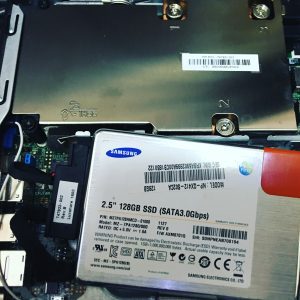
Check the symptom without changing the drive
There are several different versions of “not detected.” A drive may disappear from File Explorer but still appear in Disk Management. A drive could be visible to the BIOS/UEFI but not show in the operating system. Another may not appear in firmware at all. An external SSD can fail to mount even while its USB enclosure is detected. Recording which case applies is more useful than immediately attempting a repair.
External SSD: inspect the connection path
Start with an external SSD only if it is safe to do so. Make sure its cable is fully seated and the USB socket is not visibly damaged. Where supported, one known-good data-capable cable and another suitable port can help isolate a simple connectivity issue. Some USB-C charging cables do not reliably carry the required data connection, and USB hubs or adapters may be unreliable.
If you observe burning smells, extreme heat, liquid damage or physical deformation, disconnect power and stop. If the device is repeatedly disconnecting and holds the only copy of important files, do not keep reconnecting it to see whether it works again.
Internal SSD: check whether BIOS or UEFI lists it
On Windows PCs, firmware setup usually has a storage information page. The key used to enter BIOS or UEFI varies by manufacturer and model. If the SSD is listed, its connection is at least recognized at one level; that does not guarantee the file system or the flash storage is healthy.
If an SSD is missing from BIOS/UEFI, possible causes include a loose SATA data or power connection, an incompatible M.2 type or slot, a disabled controller, a motherboard fault or a failed drive. Kingston recommends first verifying firmware detection and, if absent, checking installation and connections with the system powered down. Do not open a laptop or remove an M.2 SSD unless you know the safe power-disconnection procedure for that model. For work or encrypted machines, professional handling is often preferable.
Windows Disk Management: observe, do not initialize
In Windows, right-click Start and choose Disk Management to see whether the storage device appears. Read its displayed size and state; compare these with what you expect. A missing drive letter, RAW partition, Unallocated space or a request to initialize are diagnostic clues, not instructions to proceed when data matters.
A drive showing the wrong capacity or repeatedly disappearing can require specialist assessment. Formatting, repartitioning, changing partition tables or installing Windows to the affected SSD can complicate recovery. Even apparently non-destructive repair commands may modify storage metadata. Make an informed decision before taking those steps.
macOS Disk Utility: identify the device and volume
For an SSD used with a Mac, open Disk Utility and select View > Show All Devices. Observe whether the physical device appears and whether a volume is listed beneath it. If a volume does not mount, avoid clicking Erase. Encrypted volumes may require the correct user password or recovery key; lack of an unlock credential is not necessarily a hardware failure.
Mac computers differ in storage design. Many recent MacBooks integrate or pair storage with security hardware in ways that make chip swapping unrealistic as a normal recovery method. Do not assume that transferring an internal chip to another computer will restore access.
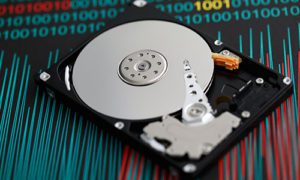
A missing SSD is not the same as a clicking hard drive
A solid-state drive uses flash memory rather than a spinning platter, so it does not normally make mechanical clicking sounds by itself. If you hear clicking from a computer, identify whether another internal hard drive or a fan is responsible. The right diagnostic path depends on the actual component involved.
When to stop DIY troubleshooting
- The SSD holds the only copy of business, family or client files.
- Windows prompts you to initialize, partition or format an existing drive.
- The SSD repeatedly disconnects or becomes unusually hot.
- The drive is missing from BIOS/UEFI after one careful connection check.
- A laptop suffered liquid damage or an electrical fault.
- The drive is encrypted and the credentials or recovery key are uncertain.
Do not repeatedly run benchmarks, full-drive scans, destructive security-erase utilities or speculative firmware flashes. A failing SSD may remain readable for a limited time; testing can use that window without creating a recoverable copy.
What a data recovery assessment may involve
A repair specialist begins by identifying the storage type, interface and detection state. They may evaluate the enclosure or host controller separately from the SSD, review power and communication symptoms and determine whether data-preserving access is possible. Recovery complexity differs among SATA SSDs, NVMe models, self-encrypting drives and Apple-integrated storage.
No shop can honestly guarantee success before examining the actual failure and encryption state. Before authorizing work, ask about the diagnostic charge, privacy handling, steps that could alter the drive, projected cost ranges and how recovered files will be returned.
Should you replace the SSD or recover data first?
If verified backups are current and complete, replacement and reinstalling an operating system may be the most efficient route. If backups are missing, prioritize preserving the existing SSD and its data until a qualified technician explains the options. Installing a fresh SSD is usually safer than overwriting the failing device while you are still deciding how to recover files.
SSD data recovery in Richmond Hill
Our Data Recovery Services page explains how to contact Maple Cell Phone & Laptop Repair about HDD, SSD, phone and computer storage issues. For diagnosis at our shop at 360 Newkirk Rd, Unit 2, Richmond Hill, contact our repair shop or call 416-587-7105 and explain the SSD model, system type and whether data is backed up. Do not hand over encryption passwords by email; agree on a secure process if credentials are needed.
Frequently asked questions
Why is my SSD detected in BIOS but not Windows?
Windows may lack a usable volume, drive letter or storage driver, or the file system could be damaged. An existing-data SSD should not be initialized or reformatted as an automatic first step.
Can an SSD fail without warning?
Yes. SSD controller, firmware, flash or power problems can occur abruptly. Some devices report health warnings first, but a health indicator is not a guarantee.
Is formatting safe if I need files back?
No. Formatting is not a safe diagnostic step for an existing SSD with important unbacked-up data. Evaluate recovery options first.
Does a missing drive letter mean the SSD has failed?
Not necessarily. The SSD may be physically recognized while the volume is unmounted or inaccessible for a different reason. Inspect non-destructively first.